


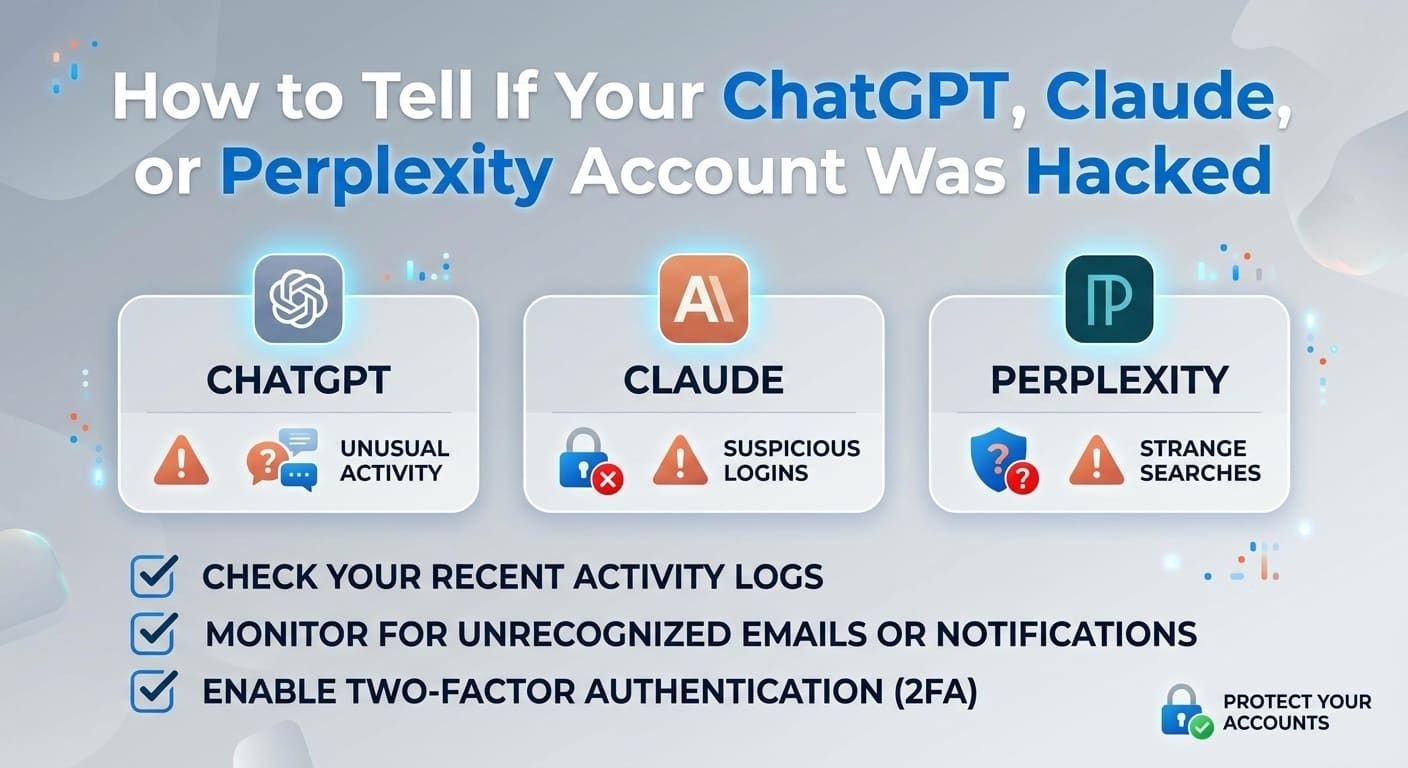
Your AI accounts hold more than you think. Old chats. Work notes. Half-finished ideas. Maybe even personal details you typed without a second thought.
That makes them a target. Hackers break into AI accounts the same way they break into email or banking accounts. The tools you use every day—ChatGPT, Claude, and Perplexity—are all fair game.
The good news is simple. Checking whether someone got in takes a few minutes. Locking them out takes a few more. You do not need any technical skill to do it, in the same way you do not need to be a locksmith to change the batteries in a door lock.
This guide walks you through it, platform by platform. Start wherever your worry is.
First, Know What You’re Looking For
A hacked account usually leaves a trail. The clearest sign is a session you don’t recognize.
A session is just a record of a device that is logged into your account. Your laptop is a session. Your phone is a session. If you see a third one you never used, that is a red flag.
Most AI platforms let you view these active sessions in your settings. That list is your first line of defense. If a stranger’s phone in another city shows up there, you have found your unauthorized device access.
Watch for these account breach signs:
- A device or location you don’t recognize in your session list.
- Chats or history you never created.
- Being logged out for no reason.
- Settings or details that changed on their own.
If you spot any of these, don’t panic. You can shut it down fast.
Open the platform you’re worried about and head to its settings now. That is step one.
How to Check Your ChatGPT Account
Start with ChatGPT, since it’s the most widely used. Checking a ChatGPT hacked account is straightforward once you know where to look.
Do this on a computer browser for the clearest view. Here’s how to check ChatGPT active sessions:
- Open ChatGPT in your browser.
- Click your username in the bottom-left corner.
- Go to “Settings.”
- Click “Security and Login.”
- Click “Active Sessions.”
Now you’ll see every device signed into your account. Look closely at the list. If a device seems off, you have two choices: Log out of that single device, or log out of all devices. ChatGPT is connected to me at once.
When in doubt, log everyone out. It’s the safer move. You can sign back in on your own devices in seconds.
How to change your ChatGPT password
If someone got in, your password is likely compromised. Change it. But here’s the catch—you need to log out of your account first before you can reset it.
To change your ChatGPT password:
- On the ChatGPT website, click “Log in” in the bottom-left corner.
- Enter your email address.
- Click “Forgot password,” then “Continue.”
- Check your email for a six-digit code.
- Enter that code on the login page and click “Continue.”
- Type your new password.
That’s it. Your old password no longer works, and so neither does theirs.
Do this now if you suspect anything. A fresh password shuts the door immediately.
How to Check Your Claude Account
Claude works a little differently, and that difference matters. Anthropic’s chatbot does not use passwords at all. Instead, it sends a login link to your email each time you sign in.
That changes how you think about Claude account security. There is no password to steal—but there is still a session to hijack if someone reaches your email or device.
To review your Claude active sessions:
- Open Claude in your browser.
- Click your username in the bottom-left corner.
- Click “Settings.”
- Click “Account.”
Your active sessions live there. Scan the list for anything unfamiliar.
Found a session you don’t trust? Here’s how to remove it:
- Hover over the session in question.
- Click the three vertical dots on the right.
- Click “Log out” or “Terminate.”
You can also log out of all devices Claude is signed into with a single click. After that, sign back in using your email address, and Claude sends you a fresh login link.
Because Claude has no password, there’s nothing to change afterward. Your email is the key. That leads to one clear takeaway: protect your email account as fiercely as the AI account itself.
Lock down your email with strong security today. It’s the master key to your Claude account.
How to Check Your Perplexity Account
Perplexity is the odd one out. The AI search engine does not show you a list of active sessions. You can’t see which devices are logged in.
That’s a real limitation, stated plainly. You lose the ability to inspect a suspicious device login before acting. So Perplexity account security relies on a blunter tool: signing everything out at once.
If you’re worried someone reached your account, here’s what to do:
- Open Perplexity in your browser.
- Click your username in the bottom-left corner.
- Click “All settings.”
- Click “Sign out of all sessions.”
- Click “Confirm.”
This is the Perplexity sign-out-of-all-sessions option, and it kicks out every device—including any intruder. You’ll then log back in with your email address.
Perplexity sends you a six-digit code by email. Enter it on the site to sign in, or click the “Sign in” button in the email to go straight through.
Since you can’t review individual devices, treat any real worry as reason enough to sign out of everything. There’s no downside beyond logging back in.
If Perplexity feels off, run the full sign-out now. It costs you a minute.
Turn On Multi-Factor Authentication Where You Can
Checking sessions fixes a problem after it happens. Multi-factor authentication stops it before it starts.
Multi-factor authentication, or MFA, adds a second step to your login. Even if a hacker steals your password, they can’t get in without that second piece—usually a code from your phone. Think of it as a deadbolt on top of your regular lock.
Here’s where things stand across the three platforms:
- ChatGPT offers multi-factor authentication. Turn it on.
- Perplexity offers multi-factor authentication. Turn it on.
- Claude does not offer it—because it has no password and uses email login links instead.
For ChatGPT and Perplexity, dig into your security settings and switch MFA on. It’s the single strongest step you can take to protect AI accounts from a stranger.
For Claude, the email link acts as its own second factor. That’s why securing your email matters so much.
Open ChatGPT’s settings and enable MFA before you close this page. Then do the same in Perplexity.
Build Habits That Keep Intruders Out
Session checks and MFA handle the immediate threat. A few steady habits keep it from returning.
Use unique passwords for every account. Reusing one password means a single leak exposes everything. If your streaming password matches your ChatGPT password, one breach hands over both. Give each account its own unique passwords, and a leak stays contained.
Store them in a password manager. Nobody can remember dozens of strong, random passwords. A password manager remembers them for you and fills them in automatically. It also makes creating unique passwords effortless.
Review your active sessions now and then. Don’t wait for something to feel wrong. A quick monthly look at your session list catches unauthorized device access early.
Guard your email above all. For Claude especially, your email is the login. But it’s the recovery route for the others too. A secure email account protects everything downstream.
Here’s the contrast that makes it concrete.
Instead of one password across ChatGPT, email, and your bank, memorized because it’s easy.
Try a different random password for each, stored in a password manager, with MFA switched on everywhere it’s offered.
The second version works because it removes the single point of failure. One leak no longer topples the rest.
Pick one habit from this list and set it up today. Start with the password manager if you don’t have one.
Why This Matters More Than It Used To
AI account security used to feel optional. It isn’t anymore.
You now pour real information into these tools—work projects, private questions, and drafts you wouldn’t want shared. That history has value, both to you and to anyone who breaks in. An exposed AI account can leak more about your life than an old social media profile ever did.
The fix is not complicated. Check your sessions. Log out of anything strange. Switch on multi-factor authentication where it exists. Use unique passwords and a password manager. Guard the email tied to it all.
None of these steps take long. Together, they turn a soft target into a hard one.
Open one of your AI accounts right now and check its active sessions. That single action tells you where you stand in under a minute.
Frequently Asked Questions
1. How do I know if my ChatGPT account was hacked?
Open ChatGPT in a browser, click your username, then go to “Settings,” “Security and Login,” and “Active Sessions.” You’ll see every device logged in. If you spot a suspicious device login you don’t recognize, log it out—or log out all devices ChatGPT is connected to—and change your ChatGPT password right away.
2. Does Claude use a password I need to change if I’m hacked?
No. Claude has no password at all. Anthropic sends a login link to your email each time you sign in. To protect your Claude account security, review your Claude active sessions under “Settings” then “Account,” terminate anything unfamiliar, and log out of all devices. Claude is signed in. Since your email is the key, secure that account carefully.
3. Why can’t I see active sessions in Perplexity?
Perplexity simply doesn’t offer a session viewer, unlike ChatGPT and Claude. That’s a real limitation for Perplexity account security. If you’re worried about unauthorized device access, your best move is the Perplexity sign out of all sessions option under “All settings,” which logs out every device at once.
4. Which AI platforms support multi-factor authentication?
ChatGPT and Perplexity both offer multi-factor authentication, and you should turn it on in each. Claude does not, because it relies on email login links instead of passwords. MFA adds a second step that blocks a hacker even if they steal your password, making it one of the best ways to protect AI accounts.
5. What’s the simplest way to secure all my AI accounts at once?
Start with two habits. Use unique passwords for every account, and store them in a password manager so you never reuse one. Then switch on multi-factor authentication wherever it’s offered. Finally, check your active sessions now and then to catch account breach signs early. These few steps cover the biggest risks.