


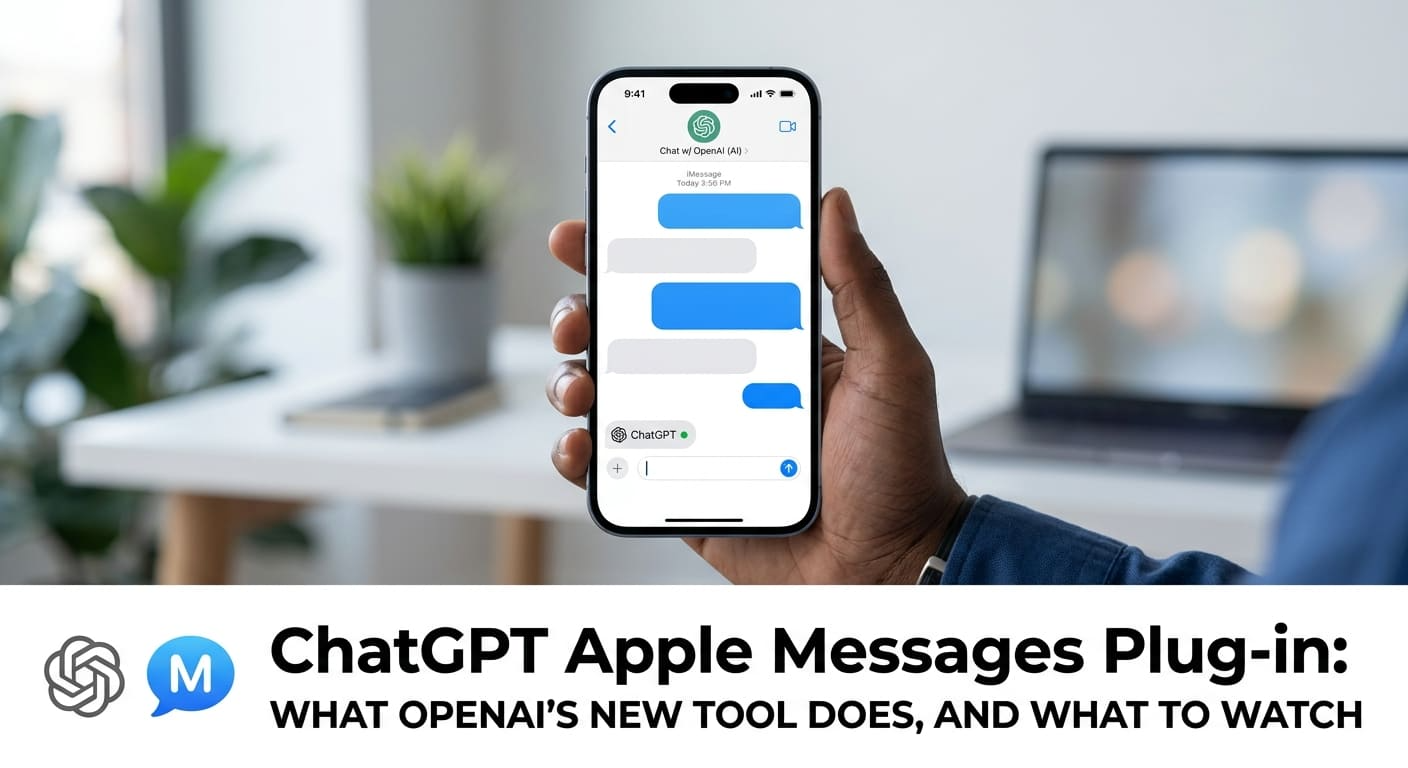
OpenAI just connected ChatGPT to your text messages. The new ChatGPT Apple Messages plug-in links your Messages inbox to the chatbot.
Once connected, ChatGPT can read, sort, and even send texts for you. That is handy and a little unsettling at the same time.
So let’s slow down. Here is what the tool does, how it works under the hood, what it stores, and where the honest privacy questions sit. We will define the technical terms as we go, so you can decide for yourself.
What the Plug-in Actually Does
Start with the plain version. A plug-in is an add-on that gives an app a new ability.
In this case, it gives ChatGPT access to your Apple Messages. You ask, and it acts on your texts.
Here is what it can handle for you:
- Sort messages so your inbox is easier to scan.
- Analyze messages to pull out patterns or key details.
- Edit messages before you send them.
- Draft new messages from a quick instruction.
- Send messages on your behalf.
- Delete messages you no longer want.
- Search your message history for something buried deep.
That search feature is the quiet star. If you have ever scrolled for ten minutes hunting for an address a friend sent months ago, you know the pain. You can ask ChatGPT to find it instead.
OpenAI’s own demo shows the tool suggesting follow-up texts. A user asks it to draft replies based on messages that came in the day before. The chatbot writes the suggestions, ready to review.
Try it now: picture one message you always struggle to find in your inbox. That search is exactly what this tool is built to speed up.
It Works for Personal and Work Use
This is not just for casual texting. The plug-in reaches into work tools too.
It connects with Codex and ChatGPT Work. Codex is OpenAI’s coding-focused tool, and ChatGPT Work is the version built for professional settings.
That means the same message help carries over to your job. You can sort a client thread, draft a professional reply, or search a work conversation without leaving the chatbot.
Here is the simple split. Use it personally to manage friends and family texts. Use it professionally to keep work threads tidy.
Keep this straight: one plug-in, two jobs. It works for your personal inbox and your work messages alike.
How the Plug-in Works Behind the Scenes
Now the part that matters most for trust. You do not need to understand the code to grasp how this handles your data, in the same way you do not need to understand plumbing to know where your water shutoff is.
Here are the key mechanics, according to OpenAI.
First, it does not build a full index of your messages. An index would be a complete, searchable copy of everything you have ever texted. OpenAI says it does not create one. That is a meaningful limit.
Second, the plug-in runs locally on your device. “Locally” means the work happens on your own computer, not on a distant server. Your texts are processed where they already live.
Third, ChatGPT only reads your messages when you specifically ask. It does not sit there scanning your inbox in the background. You make a request, it acts, then it stops.
Here is the setup and use flow, in order:
- Install the plug-in on ChatGPT desktop.
- Enable Full Disk Access when prompted.
- Make a specific request, like sorting or searching.
- Review what ChatGPT proposes before it acts.
That second step deserves a closer look, because it is the biggest permission you are granting.
The Full Disk Access Trade-off
To set this up, you must turn on Full Disk Access. This is a permission that lets the app read and write files on your device.
Let’s be plain about what that means. You are giving the app broad reach into your computer’s files, not just your texts. That is a real trade-off, and it is worth pausing on before you agree.
Think of it like handing someone a master key instead of a single room key. The convenience is high. So is the level of trust required.
None of this makes the plug-in unsafe on its own. But a broad permission is a broad permission. You should grant it knowingly, not by clicking through a prompt without reading it.
Do this before you enable it: read the Full Disk Access prompt in full, and confirm you are comfortable with that level of reach. If you are not, do not turn it on.
Where Your Messages Are Stored
Storage is where a lot of people worry, so let’s be specific. OpenAI gave clear answers here.
By default, ChatGPT desktop stores your conversations on your own computer. The content from your messages is kept locally, not on OpenAI’s servers.
That is the reassuring part. Your text content stays on your machine unless you choose otherwise.
There is one exception worth naming. If you decide to save a conversation to the cloud, it follows the same data retention policy as everything else you store there. Data retention policy simply means the rules for how long a company keeps your information.
Here is the short version:
- Local by default: message content stays on your computer.
- Not on OpenAI’s servers: the company says it does not save that content.
- Cloud is opt-in: if you save to the cloud, standard retention rules apply.
Keep this straight: your texts live on your device unless you actively move them to the cloud. That choice is yours to make.
The Privacy Questions That Remain
Here is the honest part. OpenAI named several protections, but the overall privacy picture is still not fully clear.
The company explained the local processing, the no-index approach, and the request-only reading. Those are solid points. Still, the full privacy framework around the plug-in remains somewhat vague.
That is not a reason to panic. It is a reason to move carefully. When a tool touches your private messages, “somewhat unclear” is a caveat you should take seriously.
This is not a guarantee that your messages are fully private in every scenario. Treat the plug-in as powerful and useful, but keep your eyes open while the details settle.
Do this to stay grounded: start with low-stakes messages first. Test the tool on threads you would not mind exposing before trusting it with sensitive ones.
The Sending Warning You Should Not Ignore
The riskiest feature is sending. When ChatGPT sends a text “as you,” it speaks in your name.
OpenAI addresses this directly, and its advice is clear. Keep an eye on what the chatbot is doing, and review messages before they go out.
The company also warns against one setting in particular: persistent approval. This is a mode that lets ChatGPT send messages without asking you each time.
OpenAI’s own words are blunt here. Turning on persistent approval “removes your final chance to review a message before ChatGPT sends it as you.” That is a big thing to give up.
Consider the difference in plain terms.
- Instead of: turning on persistent approval so messages send automatically.
- Try: reviewing each draft before it sends, even if it takes a few extra seconds.
The second version works better because a message sent in your name is hard to take back. One wrong text to the wrong contact can cause real trouble. That short review is your safety net.
Do this now: leave persistent approval off. Approve each outgoing message by hand until you fully trust how the tool writes for you.
Should You Turn It On?
Let’s connect the dots. This is a genuinely useful tool with a real trade-off attached.
The upside is clear. It sorts, drafts, searches, and cleans up your inbox faster than you could by hand. For a messy message history, that is a real time-saver.
The cost is the permission and the uncertainty. Full Disk Access is broad, and the privacy framework is not fully spelled out yet. Both are worth weighing before you commit.
Here is a sensible way to decide:
- Start with search and sorting, the lowest-risk features.
- Keep sending under manual review at first.
- Store conversations locally rather than in the cloud.
- Reassess once OpenAI clarifies more of its privacy details.
Do not feel pressure to switch on every feature at once. You can adopt the safe parts now and hold off on the rest.
Pick one now: choose a single low-stakes task, like searching your inbox, and let the plug-in handle just that before you go further.
Why This Matters
The short version is simple. AI can now reach directly into your private texts, and it can act on them for you.
That is a genuine leap in convenience. Sorting, drafting, and searching your messages by voice or prompt saves real time. For anyone drowning in a cluttered inbox, that is welcome.
But keep the caveats in full view. Full Disk Access grants broad reach. The privacy framework is still somewhat unclear. And persistent approval hands away your last chance to review what gets sent in your name.
The honest read is this. The ChatGPT Apple Messages plug-in is powerful and useful, but it asks for real trust. Grant that trust in small steps, not all at once.
Do this before you rely on it: test it on messages you would not mind sharing, keep sending under manual review, and decide feature by feature what you are comfortable with.
Frequently Asked Questions
1. What is the ChatGPT Apple Messages plug-in?
It is a new add-on from OpenAI that connects your Apple Messages inbox to ChatGPT. Once linked, you can ask the chatbot to sort, analyze, edit, draft, send, or delete messages, and to search your message history for buried details.
2. Does the plug-in send my messages to OpenAI’s servers?
OpenAI says no. The plug-in runs locally on your device, and message content is stored on your own computer by default, not on the company’s servers. If you choose to save a conversation to the cloud, it follows OpenAI’s standard data retention policy.
3. Why does it need Full Disk Access?
Full Disk Access is a permission that lets the app read and write files on your device, which it needs to work with your messages. It is a broad permission, so read the prompt carefully and only enable it if you are comfortable with that level of access.
4. Can ChatGPT send texts without my approval?
It can if you turn on persistent approval, but OpenAI discourages this. The company warns that persistent approval “removes your final chance to review a message before ChatGPT sends it as you.” Keeping approval manual lets you check each message before it goes out.
5. Does the plug-in work for professional use?
Yes. It works with Codex and ChatGPT Work, so you can use it for work messages as well as personal ones. That means you can sort client threads, draft professional replies, or search work conversations directly from ChatGPT.